
hamro pay
Zero Checkout
Integration Cost
Integrate Hamro Pay Checkout in minutes.
No setup fee. No integration cost.
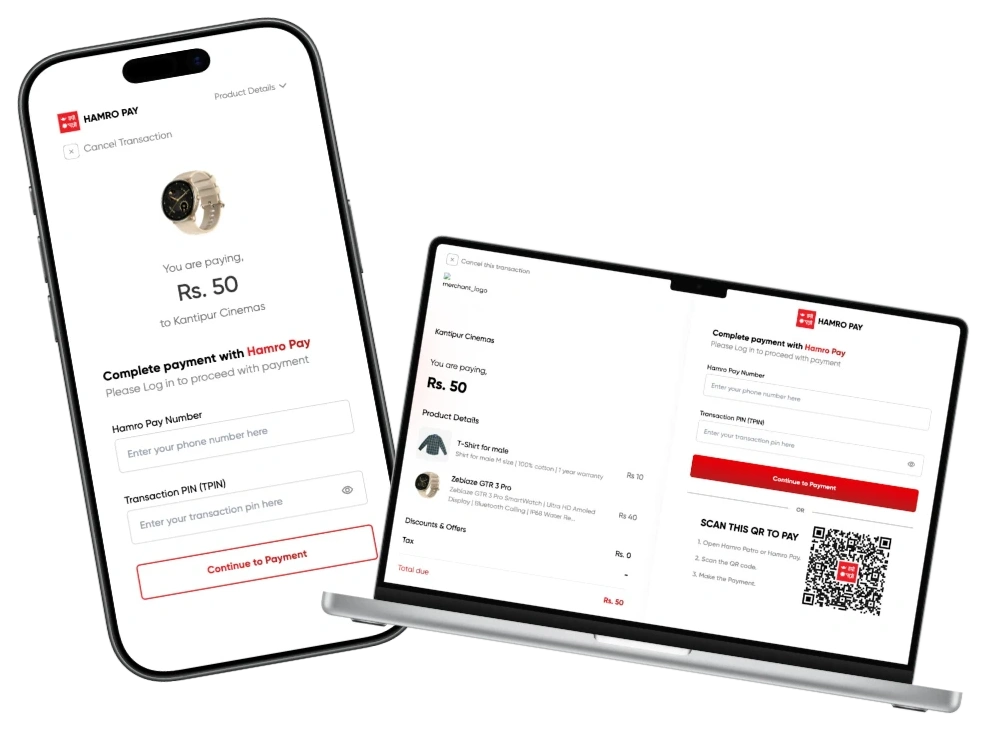
Zero Setup Cost
No setup or monthly fees. Pay only when you receive payments.
Secure by Design
We follow industry standard security practices to keep your transactions safe.
Instant Settlement
Receive payments instantly in your Hamro Pay wallet.
Easy Integration
Simple REST API with clear documentation.
Checkout Integration Process
Follow the steps below to create your test merchant account, get integration credentials, configure the webhook, integrate the APIs, and test the Checkout flow.
1. Create and Verify Your Test Merchant Account
Register your merchant account through the UAT Merchant Portal to start your checkout integration.
API Integration
Integrate Hamro Pay Checkout into your application with full API specifications, signature generation algorithms, and webhooks.
Our developer engineering team is available to assist with custom sandbox onboarding and technical integration.
1. How does hamropay checkout works
Checkout is a low-code payment integration that redirects customers to a Hamro pay hosted payment page. It securely supports one-time payment.
Hight level sequence of web checkout using Hamro Pay
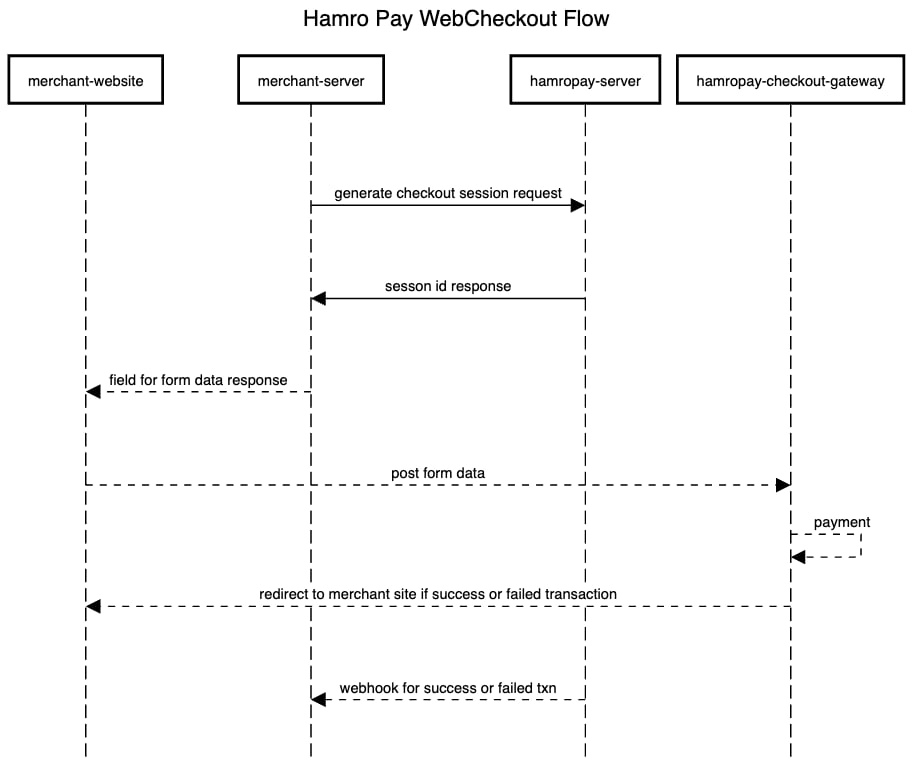
Sequence for hamropay web checkout
- merchant-website : Your website where user lands to
- merchant-service : Your backend service which your service uses
- hamropay-server : Hamropay backend API server
- hamropay-checkout-gateway : Hamropay payment web view where the payment is redirected to
1.1. Checkout life cycle

Flow for Hamro Pay checkout
Create Session / Payment Intent Request :
- The merchant's backend initiates a request to the HamroPay platform to generate a session.
- The request includes secret keys and client credentials provided by the HamroPay platform.
- Upon receiving the request, HamroPay verifies the credentials and creates a session or payment intent for the particular transaction.
- Build the params object (see Params) required by your web client for posting form data to initiate the Hamro Pay Payment Page (see 4.2 Checkout Proceed API).
- The response contains necessary data to build form data that needs to be posted to Hamro Pay web client.
Post Form Data to HamroPay Checkout Client :
The merchant's frontend receives the session/payment intent data. Using this data, the frontend submits the required form to the HamroPay checkout client.
Redirect to HamroPay Web Portal / Checkout Portal :
- User is redirected to Hamro Pay checkout website / portal with form data posted by the client.
- Customer completes the checkout / payment process on the HamroPay portal.
Return to Merchant Site :
Upon successful payment, users are redirected back to the merchant's site. The redirect URL is pre-configured during the payment intent creation (see 6. Webhook (Optional)).
1.2 Transaction limit per transaction:
| User Checkout Limit | Minimum Limit | Maximum Limit |
|---|---|---|
| VERIFIED | Rs. 10 | Rs. 50,000 |
| NOT_VERIFIED | 0 (NOT ALLOWED) | 0 (NOT ALLOWED) |
2. Headers
Every hamropay api request should include certain headers to work. It is mandatory to include all these headers unless described explicitly in the API description.
Following are three headers that the client needs to pass while sending every requests:
- Signature : The signature string generated using the client secret. The signature should be a Base64 string of HMAC512 message output.
- Client Id : The unique id that will be generated and given by the Hamropay team.
- Client-Api-Key : The secret api key that will be provided by the Hamropay team.
Headers Example with Key And Values :
| Header Key | Value Example | Description |
|---|---|---|
| Signature | base64stringrepresentation== | Base64 HMAC-SHA512 signature string |
| Client-Id | 123123123132-asda-asda-asda-asdasdasd | Unique ID provided by Hamropay team |
| Client-Api-Key | 8c9e2ea0-4eb5-11f1-baa3-de257371874e | Secret API Key provided by Hamropay team |
Signature: base64stringrepresentation==
Client-Id: 123123123132-asda-asda-asda-asdasdasd
Client-Api-Key: 8c9e2ea0-4eb5-11f1-baa3-de257371874e
Content-Type: application/json3. Signature Generation
This section describes how the signature string should be generated in general, for the values required for generating the signature please consult every api section found below.
Signature must be included in the header section of the request. To generate a signature we need the signature string (described in the individual API section) and client secret.
The client secret used for generating the string will be provided by the Hamro Pay team and shared ONLY between the client and Hamro Pay Checkout API.
The signature should be a Base64 string of HMAC512 message output.
Psudo Code Example:
client_secret = 'abcdefg'

signature_message_string = field1 + ',' + field2 + ',' + field3 + ',' + field4.. fieldn
(String separated by comma).

final_signature_string = toBase64 ( HmacSHA512Digest ( signature_message_string , client_secret ) )
*(Values separated by comma as a string). Messages are different according to APIs.*
What field's to be used for generating the signature_message are defined in the every API sections.
3.1. Sample Code For Base64 Signature Generation
const crypto = require('crypto');

/**
 * Generate HMAC-SHA512 signature in Base64
 * @param {string} message - Comma-separated fields
 * @param {string} secret - Client secret provided by Hamro Pay
 * @returns {string} Base64 encoded signature
 */
function signHMAC(message, secret) {
  try {
    const hmac = crypto.createHmac('sha512', secret);
    hmac.update(message, 'utf8');
    return hmac.digest('base64');
  } catch (error) {
    throw new Error('HMAC signature generation failed: ' + error.message);
  }
}

// Example usage:
const signature = signHMAC("2500.00,NPR,PN_-Nd99TBnAlBjCgl8ef_b,ORD-12345,usr_sec_991823ab", "YOUR_CLIENT_SECRET");
console.log("Signature:", signature);4. Checkout API
4.1. Create Session API
Intended API User: Merchant backend
Fields required for generating Signature string:
- amount
- currency
- merchantId
- merchantTxnId
- userSecret
Use these fields for signature string generation i.e values of the fields combined with ',' to form a single string and see Signature Generation section to see how to generate this.
initial_signature_string = amount+','+currency+','+merchantId+','+merchantTxnId+','+userSecret
final_signature_string = toBase64 ( HmacSHA512DigestOf ( initial_signature_string , using_secret ) )
Request :
| Fields | Data Type | Description |
|---|---|---|
| merchantId * | String | Unique id for merchant |
| merchantTxnId * | String | Merchant Transaction ID (Length less or equal to 25 chars) |
| amount * | Double | Amount in Rupees. Double value (e.g. 23.77) |
| currency * | String | Currency of the transaction (e.g. "NPR") |
| userSecret * | String | Client user secret |
| successUrl * | String | Url to redirect after the transaction is successfully completed. |
| failureUrl * | String | Url to redirect after the transaction is failed or canceled. |
| remarks | String | Remarks for the transaction. |
| clientCommissionConfig | JSON Object | If applicable for client. @see Client Commission Config |
| productList | Array of JSON Object | List of product for checkout page @see Product List Sample |
Client Commission Config
"clientCommissionConfig": {
    "commissionMerchantId": "8c9e2ea0-4eb5-11f1-baa3-de257371874e1",
    "commissionPercentage": 3.56
}
Product List Sample
"productList" : [
  {
    "name": "shirt",
    "imageUrl": "https://testUrl.jpg",
    "description": "This is shirt",
    "price": 99.99, // Amount in Rs. for render purpose so Rs.99.99 should be 99.99
    "quantity": 1
  }
]
Response :
| Fields | Data Type | Description |
|---|---|---|
| signature | String | Base64 Signature representation |
| merchantTxnId | String | Merchant Transaction ID |
| trackingId | String | Tracking ID for the transaction |
| amount | Double | Amount in Rupees |
| status | String | Status of the transaction |
| client_id | String | Client ID |
| client_api_key | String | Client API key |
| merchantId | String | Merchant ID |
{
  "merchantId": "PN_-Nd99TBnAlBjCgl8ef_b",
  "merchantTxnId": "ORD-2026-08912",
  "amount": 2500.00,
  "currency": "NPR",
  "userSecret": "usr_sec_991823ab",
  "successUrl": "https://merchant.com/checkout/success",
  "failureUrl": "https://merchant.com/checkout/failure",
  "remarks": "Order payment #8912",
  "clientCommissionConfig": {
    "commissionMerchantId": "8c9e2ea0-4eb5-11f1-baa3-de257371874e1",
    "commissionPercentage": 3.56
  },
  "productList": [
    {
      "name": "Casual Cotton Shirt",
      "imageUrl": "https://merchant.com/images/shirt.jpg",
      "description": "Premium casual wear shirt",
      "price": 2500.00,
      "quantity": 1
    }
  ]
}
4.2 Checkout Proceed API
Intended API User: Merchant frontend
Make a POST request with following parameters to the provided GATEWAY_URL with Content-Type as application/x-www-form-urlencoded.
Params :
| Fields | Data Type | Description |
|---|---|---|
| merchant_id * | String | Unique id of the merchant provided by the Hamro Pay team. |
| session_id * | String | Session ID obtained from Create Session API |
| token * | String | Token obtained from Create Session API |
| merchant_transaction_id * | String | Unique transaction id generated by merchant. Length should be less than or equal to 25 characters. |
| remarks | String | Remarks about the transaction. Length should be less than or equal to 250 characters. |
| phone_number | String | Phone number of the Hamro Pay user if available. [OPTIONAL] |
Js Sample Checkout-Form using params above
const params = {
  merchant_id: "Your merchant id",
  session_id: "Session ID",
  token: "Your Token",
  merchant_transaction_id: "ORD-2026-08912", // <= 25 chars
  remarks: "Remarks (upto 250 chars)",
  phone_number: "98XXXXXXXX" // optional
};

const form = document.createElement("form");
form.method = "POST";
form.action = path; // GATEWAY_URL
form.enctype = "application/x-www-form-urlencoded";

for (const key in params) {
  if (params.hasOwnProperty(key)) {
    const hiddenField = document.createElement("input");
    hiddenField.type = "hidden";
    hiddenField.id = key;
    hiddenField.name = key;
    hiddenField.value = params[key];
    form.appendChild(hiddenField);
  }
}

document.body.appendChild(form);
form.submit();
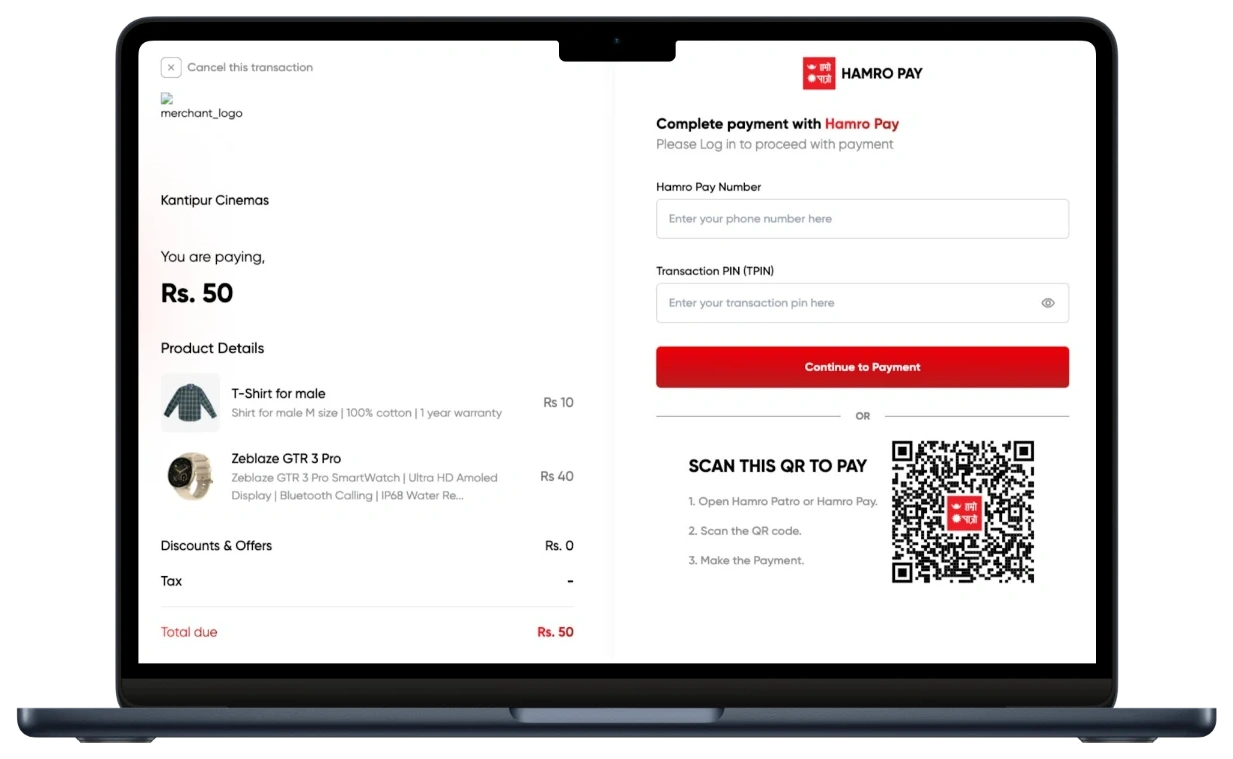
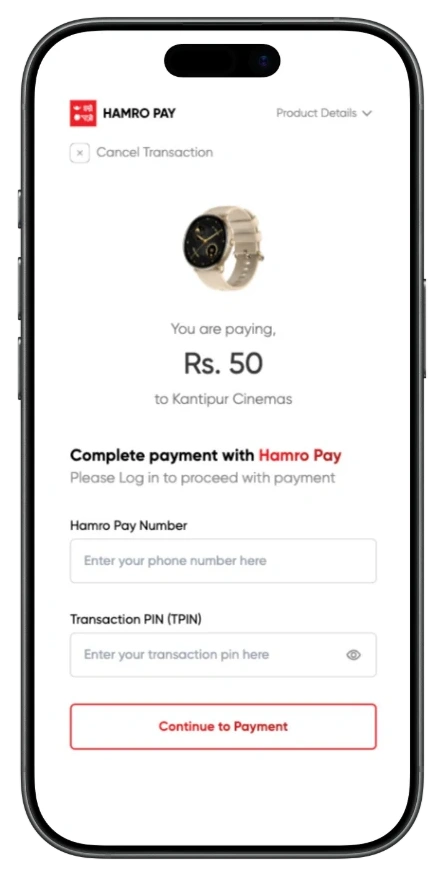
Hosted Checkout UI Previews
When your application posts form data to GATEWAY_URL, customers are redirected to the responsive Hamro Pay payment gateway.
4.3. Get Transaction API
Intended API User: Merchant backend
Fields required for generating Signature string:
- merchantTxnId
- merchantId
- client_id
- clientApiKey
Use these fields for signature string generation i.e values of the fields combined with ',' to form a single string and see Signature Generation section to see how to generate this.
initial_signature_string = merchantTxnId+','+merchantId+','+client_id+','+clientApiKey
final_signature_string = toBase64 ( HmacSHA512DigestOf ( initial_signature_string , using_secret ) )
Request :
| Fields | Data Type | Description |
|---|---|---|
| merchantId * | String | Unique id merchant |
| merchantTxnId * | String | Merchant Transaction ID from previous requests |
Response :
| Fields | Data Type | Description |
|---|---|---|
| merchantTransactionId | String | Merchant Transaction ID |
| status | String | Status of the transaction. ( PENDING , PROCESSING , FAILED , COMPLETED ) |
| amount | Double | Amount in Rupees. |
| remarks | String | Remarks of the transaction. |
| message | String | Message about the transaction. |
// Request
{
    "merchantId" : "PN_-Nd99TBnAlBjCgl8ef_b",
    "merchantTxnId" : "bdg68smvsyg"
}

// Response
{
    "merchantTransactionId": "bdg68smvsyg",
    "trackingId": "9d7ebc60-ba76-11ee-a642-ba34db130c51",
    "status": "COMPLETED",
    "amount": 14.5,
    "remarks": "This is remarks",
    "message": "SUCCESS"
}
Once the transaction is successful or failed, Hamropay provides the response of the transaction through the Client’s response url provided during Create Session API Or through the webhook . The response is sent to the provided response url after the transaction is successful/Failed.
5. Success / Failed Redirection
After the transaction, HamroPay will redirect to the provided success or failure URL.
Regarding the Success Redirection URL
If the URL provided is https://something.com/success, HamroPay will redirects to client appending the MerchantTxnId as below:
https://something.com/success?MerchantTxnId=123213Where, MerchantTxnId represents the actual transaction ID, which Client can utilize to confirm the transaction from their end.
Regarding the Failure Redirection URL
If the URL provided is https://something.com/failure, HamroPay will redirects to client appending the MerchantTxnId as below:
https://something.com/failure?MerchantTxnId=123213Where, MerchantTxnId represents the actual transaction ID, which Client can utilize to confirm the transaction from their end.
6. Webhook (Optional)
Merchants / Clients will receive a webhook to their provided POST REQUEST URL (endpoint) from hamro pay after the Checkout transaction is successful or failed. The webhook can be used to trigger the actual transaction without having to poll for the transaction status.
6.1 Using Hamro Pay webhook
- Integration Setup : To begin, the client integrates their application with Hamro Pay's payment system. This involves providing a callback URL, typically a POST endpoint, where Hamro Pay will send webhook notifications which is a json body regarding payment details.
- Webhook Configuration : Once integrated, Hamro Pay configures its system to send payment webhook notifications to the provided URL whenever a payment status changes, such as success or failure.
- Handling Webhook Requests : The client's server needs to implement an endpoint to receive and process webhook requests. This endpoint should be capable of handling POST requests and parsing the incoming data.
- Processing Payment Status : Upon receiving a webhook notification, the client's server extracts relevant information from the payload, such as transaction ID, status, and any associated metadata.
- Handling Success or Failure : Depending on the received status, the client's application can take appropriate actions. For instance, if the payment was successful, it can update the user's account or trigger a confirmation message. If the payment failed, it can initiate a refund process or notify the user about the issue.
- Signature Verification (Optional but Recommended) : To ensure the authenticity of webhook requests and prevent unauthorized access or tampering, HamroPay can include a signature along with the payload. The client's server then verifies this signature to confirm that the request indeed originates from HamroPay.
Webhook Body:
These are the json body fields you will receive in request from hamropay backend to your provided endpoint.
| Fields | Data Type | Description |
|---|---|---|
| merchantTxnId | String | MerchantTransactionId generated from client, can be used to fetch transaction with merchantId |
| merchantId | String | For Reconciliation purpose |
| amount | double | Transaction amount in Rs. |
| status | String | Status of the transaction. (PENDING, PROCESSING, FAILED, COMPLETED) |
| metadata | map<string,string> | Same Extra data returned, that you send while creating payment intent |
Json Representation
// HEADER
// Signature: <<Signature String generated from hamropay>>

{
  "merchantTxnId": "Txn Id used for reconciliation purposed initially from client",
  "merchantId": "your merchant Id",
  "amount": 9.99, // in Rs.
  "status": "COMPLETED OR FAILED", // either or,
  "metadata": {"field1":"fieldValue1","field2":"fieldValue2"}
}
6.2 Webhook Verification
You will get a webhook request containing the signature in the header. The signature string is available in header in key Signature i.e header.get("Signature"). The {{merchantWebHookSigningSecret}} will be provided by Hamro Pay team.
{merchantWebHookSigningSecret} is only used to validate the webhook request and for nothing else.
// Use the following fields from the body, to generate the signature string:
// Seperated by commas
var signatureString = merchantTxnId +','+ merchantId +','+ status +','+ amount;

var signatureFromHeader = header.get("Signature");
var signatureGenFromBodyInBase64 = Base64( HMAC.signHMAC(signatureString , {{merchantWebHookSigningSecret}}) );

var isValid = signatureFromHeader.equals(signatureGenFromBodyInBase64);
You can 3. Signature Generation to see code sample how to generate signature string using the fields merchantTxnId +','+ merchantId +','+ status +','+ amount
7. Code with Description
- OK OR ACTIVE = 0
- CANCELED = 1
- UNKNOWN = 2
- INVALID_ARGUMENT = 3
- TIME_OUT = 4
- NOT_FOUND OR SUSPENDED = 5
- ALREADY_EXISTS = 6
- PERMISSION_DENIED = 7
- LIMIT_EXCEEDED = 8
- FAILED_PRECONDITION = 9
- ABORTED = 10
- OUT_OF_RANGE = 11
- UNIMPLEMENTED = 12
- INTERNAL = 13
- UNAVAILABLE = 14
- DATA_LOSS = 15
- UNAUTHENTICATED = 16
Ready to start accepting payments?
Integrate once and get access to a seamless payment experience for your users.
Company
Code of Conduct
Hamro Pay Support
Chat Support: (24x7)
Call support: (6am-10pm)
Grievance officer
Follow Us


© 2026 HamroPay. All Rights Reserved.